How to Virtually Try On a Halloween Costume Before You Buy It
Found a costume you love? See a preview on your own photo before deciding what to order.
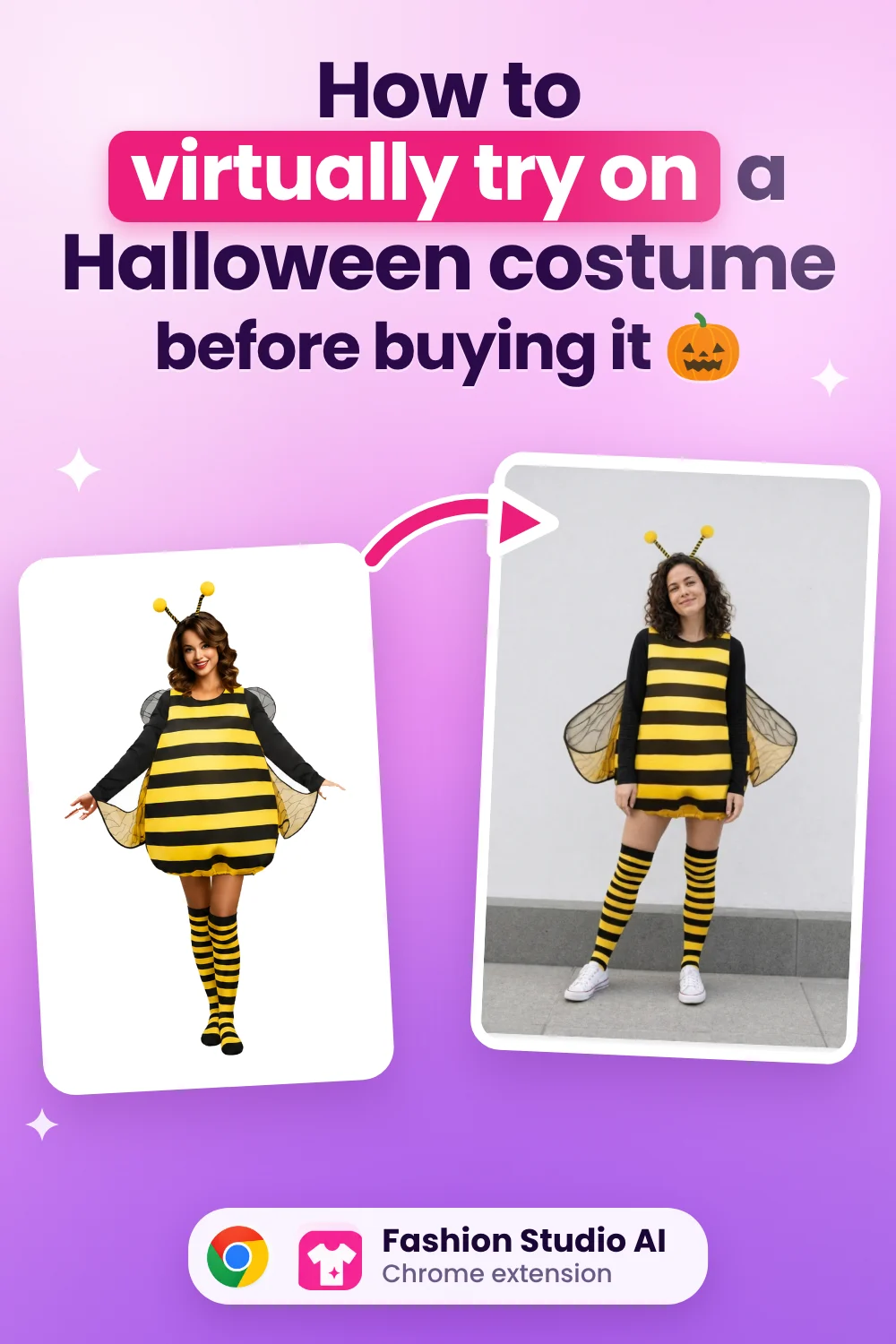
You found the perfect Halloween costume. The colours are right, the idea is fun, and the product photo makes it look like an easy decision. Before ordering, though, you want to answer one question: what would it look like on you?
That is the awkward part of costume shopping online. The photo shows one person, in one pose, under studio lighting. You can see the outfit, but you are still imagining how its shape, pattern and accessories might work together on your own frame. Finding out when the parcel arrives four days before the party leaves very little time for a second choice.
Virtual try-on gives you another reference before you buy. With Fashion Studio AI for desktop Chrome, you can select a costume image and generate a preview using your own photo. The bee costume example in this guide shows the idea: the product image becomes the starting point for a look on a different person.
Here is the process in five steps, followed by what to check before you make a purchase.
What you need before you start
- Google Chrome on a laptop or desktop, with the Fashion Studio AI extension installed.
- A Fashion Studio AI account. Use the same account as the website if you already have one.
- One clear, full-body photo of yourself, with your head and feet visible.
- A costume image that clearly shows the clothing you want to preview.
You do not need to own the costume or create an account with the shop just to preview its image. You will need enough AI Credits for the action; check the balance and cost shown in the extension before starting.
Step 1: Install the Chrome extension and sign in
Open the Fashion Studio AI listing in the Chrome Web Store and choose Add to Chrome. The extension is free to install. Accept Chrome's installation prompt, then open the extensions menu using the puzzle-piece icon in the toolbar.
Install Fashion Studio AI from the Chrome Web Store
Pin Fashion Studio AI so its icon stays easy to find. Open it and sign in to your Fashion Studio AI account. If you already use the website, signing in with the same account keeps your credits and saved content together.
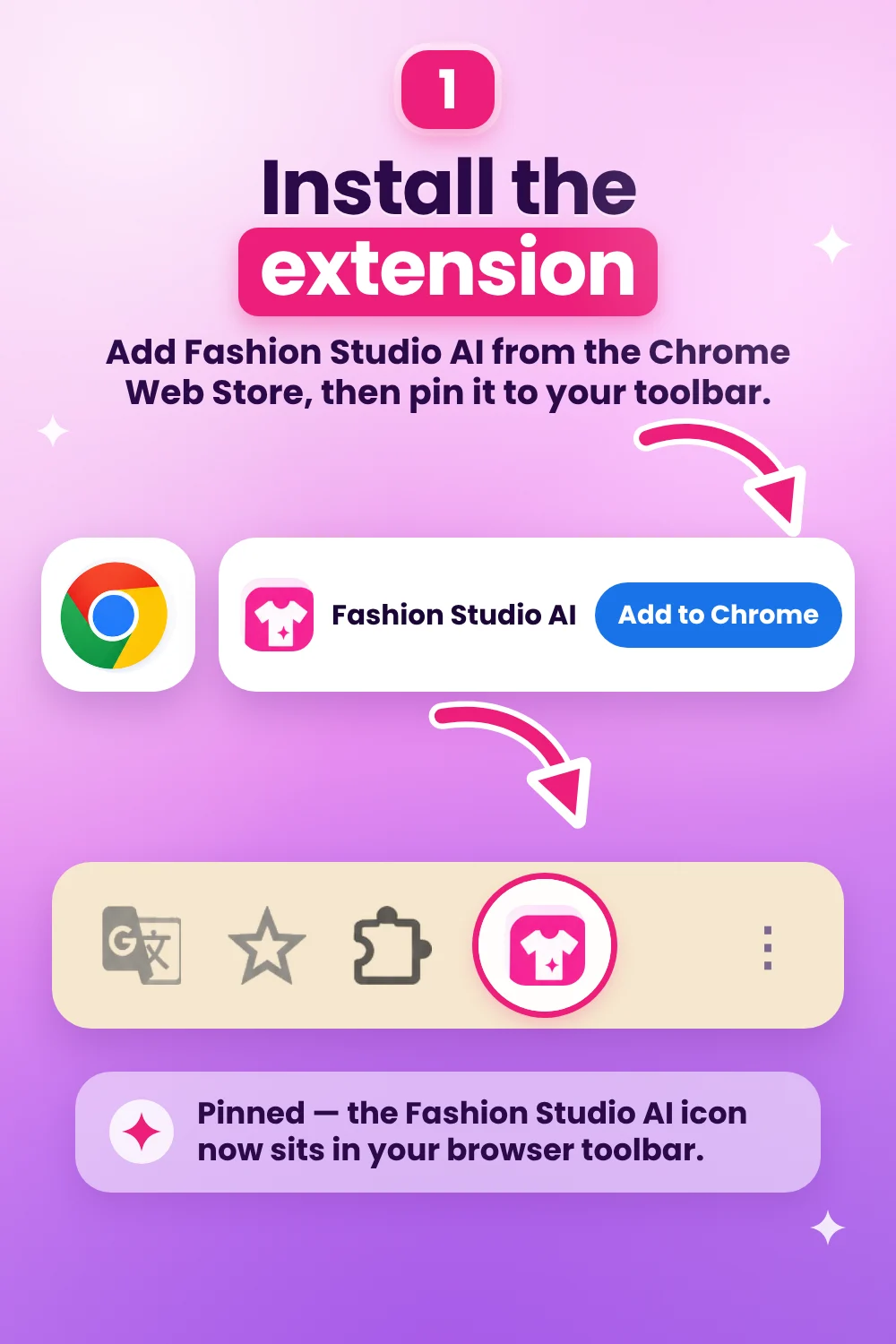
Return to the page with the costume you want to try. If that page was open before you installed the extension and the menu does not appear, reload the page and try again.
Step 2: Find a costume and choose Try This Outfit
Browse the way you normally would: a Halloween shop, a marketplace listing, or a brand's own store. The extension works with the image you select, so a retailer does not need to provide its own virtual fitting room. Some sites restrict image access, however, and not every visible image can be retrieved successfully.
Start with the main product photo rather than a tiny search thumbnail. Look for a clear view of the whole outfit, with the front visible and as little obstruction as possible. A jacket hidden behind a handbag or a costume cropped at the waist gives the AI less information to work with.
For the bee costume in this guide, the stripes and overall shape are easy to see. The wings and headband help describe the idea, but small or unusual accessories may be less consistent in the generated result. A clear source still matters more than a dramatic pose.
Check the product description for what is actually included. A photograph may show shoes, wings or accessories that are sold separately. A generated preview cannot establish the contents of the package.
Right-click the image to open the try-on
Right-click directly on the costume photo. In Chrome's context menu, open Fashion Studio AI and choose Try This Outfit. Before generating, confirm that the selected image is the costume you intended to use.
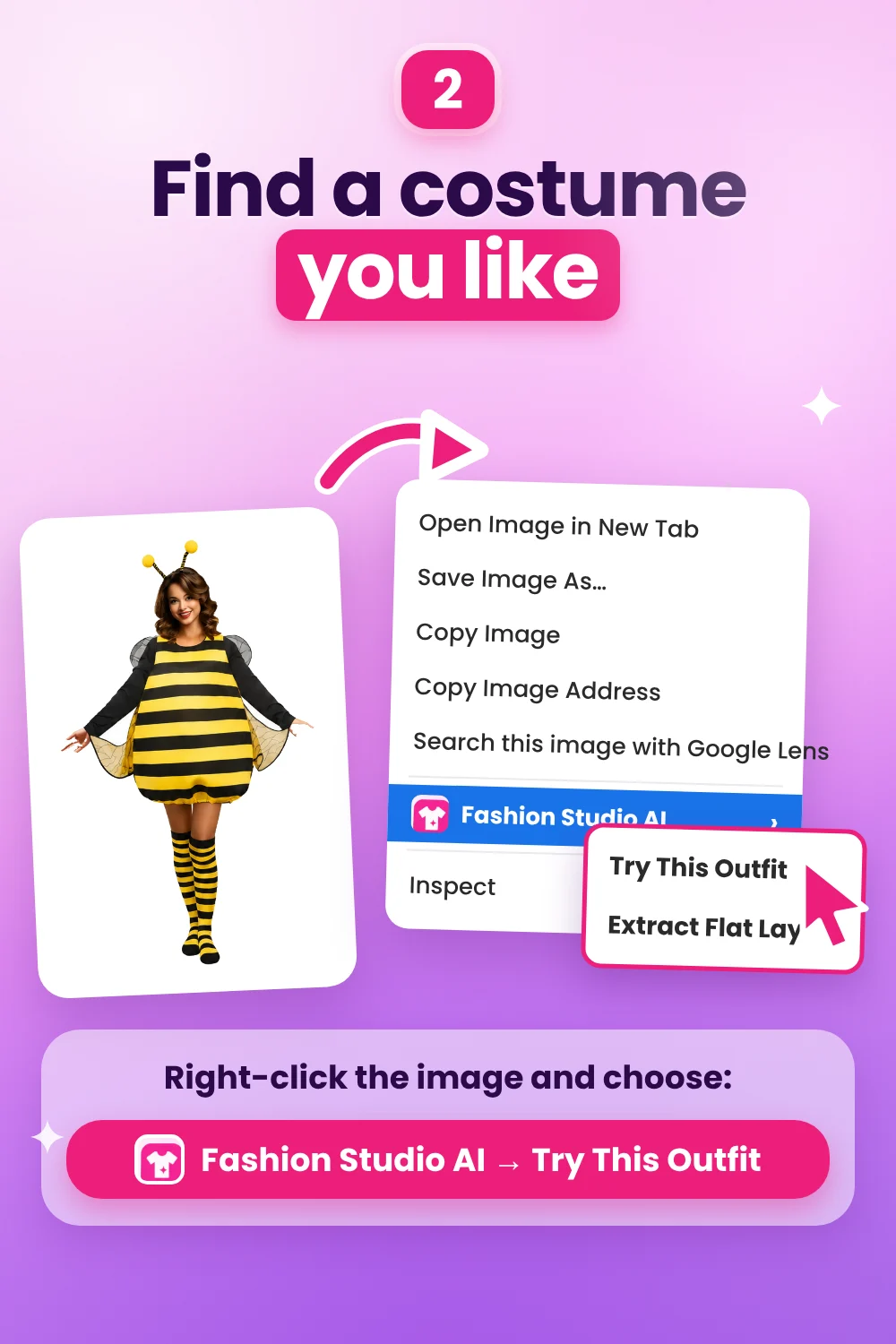
This check is useful on pages with several similar products or a carousel of alternative views. If the preview shows a neighbouring item or an unhelpful crop, go back and select a clearer image from the product page. If a site blocks access, use a product image you are permitted to upload through the website's try-on tools.
You may also notice Extract Flat Lay in the menu. That is useful when you want to look at the clothing and accessories as separate pieces while planning a DIY costume. Review the extracted pieces against the original photo: the AI may miss, merge or reinterpret overlapping details. The retailer's listing remains the place to check what is included.
Step 3: Upload or select your full-body photo
Choose the person photo you want the costume applied to. On your first try-on, upload a clear full-body image. If you have a saved photo available, select it and check its preview; you do not need to upload the same image for every costume.
Choose a photo that gives the AI a clear view
- Stand facing the camera with your head and feet in the frame.
- Keep your arms relaxed and slightly clear of your body, so they do not hide the outfit area.
- Wear simple clothing that makes your outline easy to see, such as a T-shirt and jeans.
- Use even light and a plain background, with no strong shadow across your body.
- Use an individual photo, without heavy filters, large foreground objects or other people in the frame.
A straight, ordinary photograph is usually more useful here than a carefully posed social photo. A long coat can hide your outline; crossed arms can hide a neckline; a picture cropped at the knees gives the system no reference for the rest of the look. If the source photo is difficult to read, taking a new one is often the most useful adjustment.
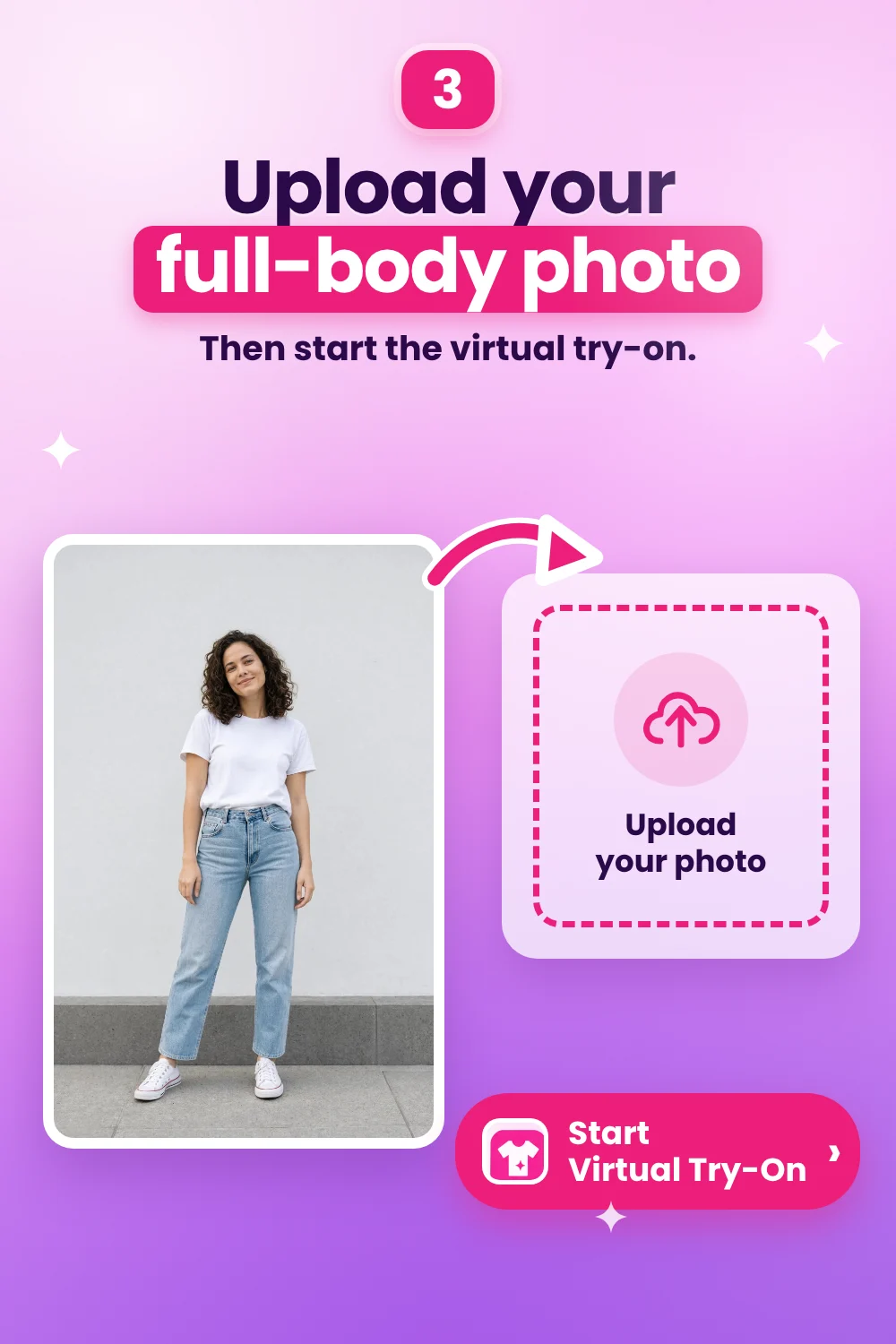
Check the person photo, costume image and displayed credit cost, then choose Start Virtual Try-On. Let the generation finish in the result window. Processing time varies with the service and the request; there is no guaranteed completion time of a few seconds.
Step 4: Review the result before deciding
You now have an AI-generated view of the costume using your own photo. Start with the overall impression: do you like the colour combination, the broad silhouette and the way the pieces look together? This is a useful point at which to compare the costume with another option you were considering.
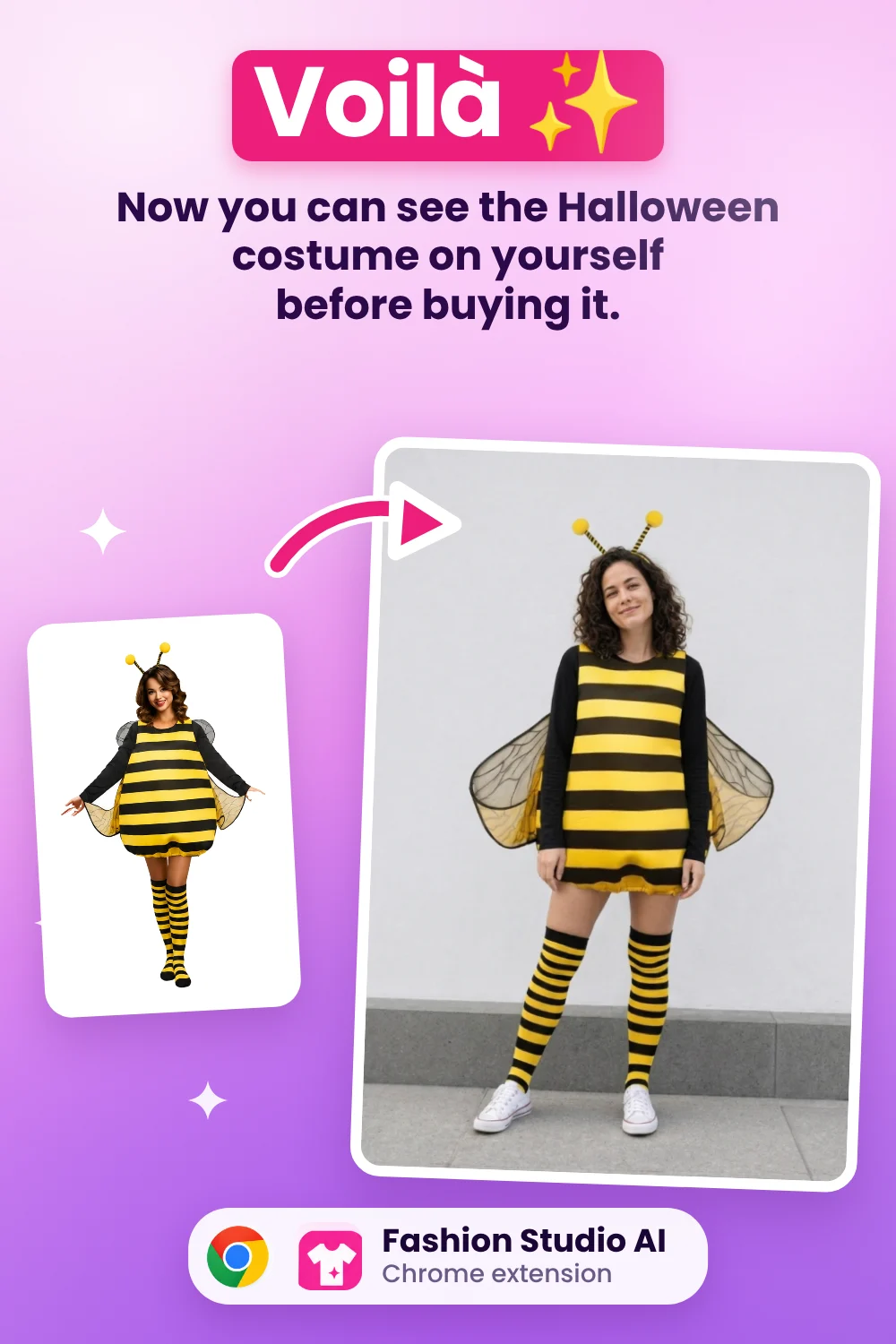
Look more closely before accepting the image as a useful preview. Check the stripes or print, neckline, sleeves, hem, hands and any accessories. If the output changes a distinctive detail or produces an odd overlap, treat that part of the result as an AI error. Try a clearer source image or person photo if you need another comparison.
Use virtual try-on to explore the appearance of a costume. It does not measure your body or predict garment fit. Hem placement, fabric drape, colour and proportions in a generated image can differ from the real item. Use the retailer's measurements and size chart before choosing a size.
Step 5: Save and compare your shortlist
Save a generated result to My Outfits if you want to keep the image. Save the garment to Wishlist if you want to keep track of the item you are considering. Check that its source link points to the correct product page, especially when you started from a search result or an inspiration image.
If you have several tabs open, use the same person photo for each candidate. Keeping the pose, lighting and background consistent makes it easier to compare the overall looks. Start with your strongest options and keep an eye on your available credits as you generate.
You might prefer the shape of one costume but the colour of another. A preview can help you notice that before ordering and narrow the search: perhaps you want a simpler outfit, a different colour, or a DIY version built from clothes you already own.
For a group costume, share the results you are comfortable sharing with the people involved. Seeing the proposed looks together can help everyone agree on the theme. Use your own photo, or a photo you have permission to use.
What it costs
The extension is free to install. As of October 14, 2026, the Free plan includes 5 AI Credits per month and 10 one-time Welcome Credits when joining. Virtual Try-On costs 1 credit per generation. If those initial credits are available and you spend them only on try-ons, that covers up to 15 generations.
The published monthly USD prices are $19.99 for Style Plus with 100 credits per month, and $34.99 for Style Pro with 250 credits per month. Review the current pricing page and the cost shown before each action, since plan details and prices can change.
Check current plans and AI Credit costs
The website and extension share one account and credit balance. Monthly plan credits reset each billing period; sharing a balance across the two surfaces does not mean unused monthly credits roll over. Purchased credit packs and bonus credits follow the terms shown on the pricing page.
What happens to your photo
Fashion Studio AI's extension privacy policy says it does not build a browsing-history profile or sell extension user data. Fashion-related page content is processed when you intentionally use a feature, such as selecting an image, using the side panel or saving an item.
Generating a try-on involves processing the selected costume image and your chosen photo through the service and its AI providers. Content you choose to save can remain in your account until you delete it, subject to the retention terms in the policy. Read the full policy for processing, storage and deletion details.
Read the extension privacy policy
Before you place the order
Once you have a look you like, return to the actual product listing. Confirm the included pieces, size chart, material description, delivery date and return terms. The preview helps with choosing a visual direction; those details determine whether the order will work for your plans.
Start with one costume and one clear photo. Review the result, save the ideas you like, and compare another option if you are still undecided. You will have something more personal than a product photo to help make the choice.
Ready to try it yourself?
Explore try-on examples and create outfits with Fashion Studio AI.
Add to ChromeFrequently asked questions
Do I need anything besides the Chrome extension?
You need a Fashion Studio AI account, a clear person photo, a suitable costume image and enough credits for the action. You can start the try-on from the extension. The website offers wardrobe and outfit-planning tools under the same account.
Does it work on every shopping site?
It works with selected images rather than a retailer-specific try-on widget, but image access depends on the page. Some images are blocked, embedded in an unsupported way or too small to use well. Try the product detail page or upload a permitted image through the website if selection fails.
Will it tell me which size to buy?
No. It generates a visual preview, not a size recommendation. It can help you compare the overall appearance of different costumes, but cannot establish exact fit, fabric behaviour or where the real hem will fall. Check your measurements against the retailer's size chart.
Can I use it for a costume I already own or a DIY look?
You can use a suitable image of the clothing you want to preview. For a DIY idea, Extract Flat Lay can help you inspect the visible pieces in a reference image. Review the output carefully; it does not provide a verified shopping list or identify every hidden item.
Do I need to upload my photo every time?
No. When a saved person photo is available in your account, you can select it again. Confirm the selected photo before each generation, especially if you keep more than one.
What if the result misses the wings, hat or another detail?
Accessories, unusual shapes and overlapping layers can be harder to reproduce. Compare the preview with the original photo and try a clearer reference if needed. Do not use a missing or altered detail in the preview as evidence about the actual product.
Does this work on a phone?
These instructions are for the extension in desktop Chrome. Mobile app availability is listed separately on the Fashion Studio AI Apps page; as of October 14, 2026, iOS and Android are listed as coming soon.
How long does a try-on take?
Processing time varies. Follow the progress shown in the result window and wait for the generation to finish. A completion time of a few seconds is not guaranteed.
Last checked October 14, 2026 · Fashion Studio AI