Nothing to wear… every morning? Plan a week of outfits in 40 seconds
Your closet is full. You still stand in front of it every morning, try on three things, and run late anyway. Here is how to make that decision once a week instead of every day.

Why getting dressed takes so long
It is rarely about having too few clothes. Every morning you make the same decision from scratch: what fits the weather, what goes with what, what you wore yesterday. And you make it while you are in a hurry.
Planning the week ahead takes that decision out of your morning. You decide once, calmly, and then just follow the plan.
How Week Planner works
Week Planner lives in AI Stylist in Fashion Studio AI. It plans seven days of outfits from the clothes you already own, so you never get a look you would have to buy first.
Step 1Find Week Planner
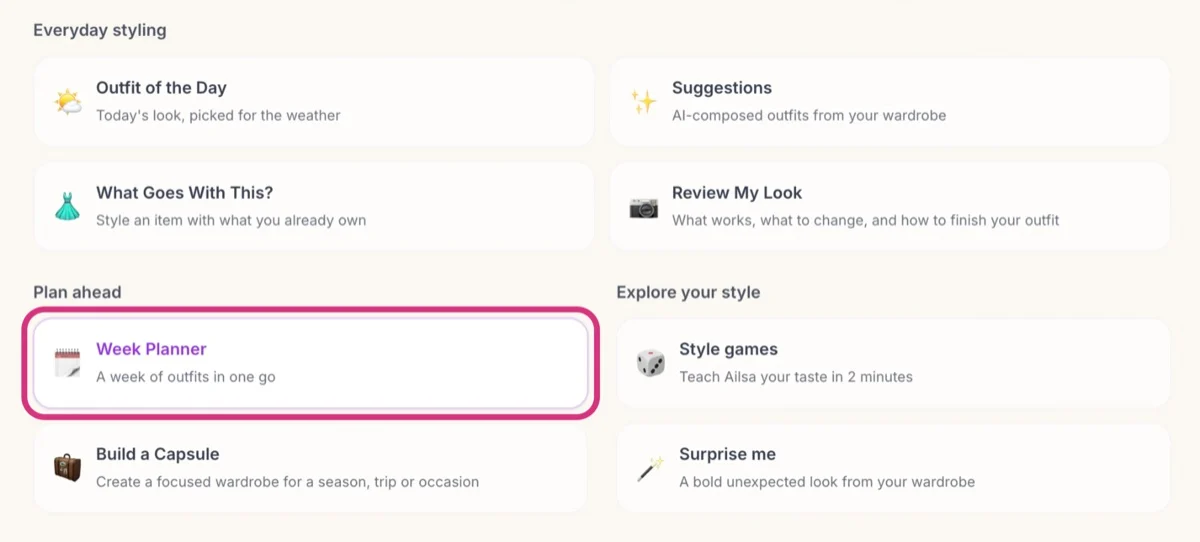
Open AI Stylist in Fashion Studio AI. Under Plan ahead, tap Week Planner.
Step 2Pick when your week starts
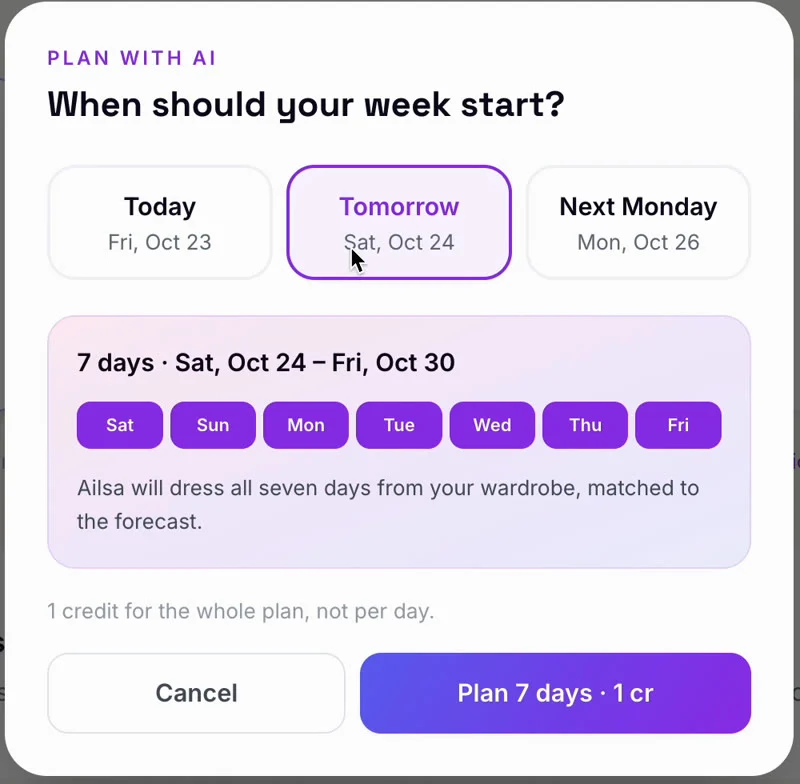
Tap Plan 7 days with AI. Choose whether the week starts today, tomorrow or next Monday.
Step 3AI checks the weather and builds 7 outfits
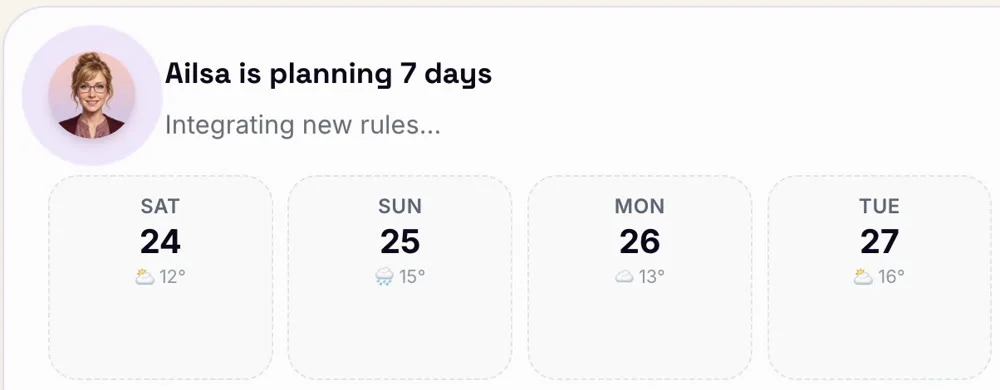
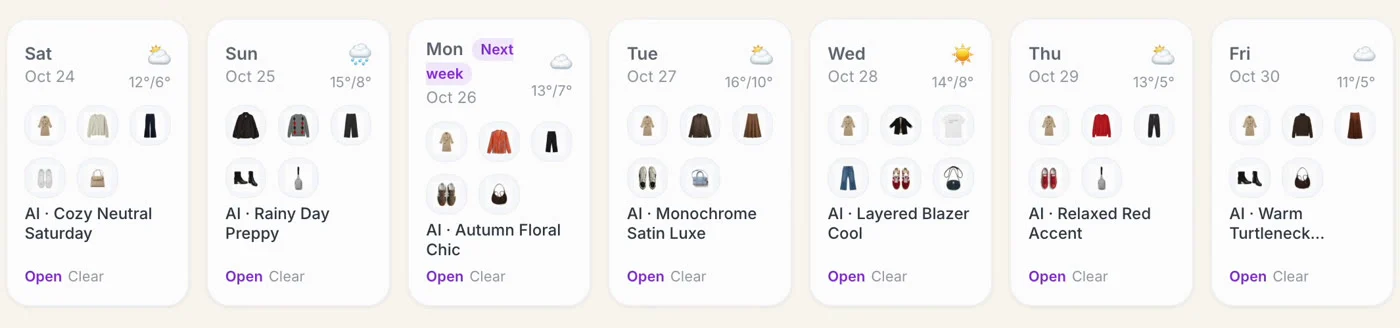
Week Planner looks at the forecast where you are, then styles every day from your digitized wardrobe. A rainy Sunday gets boots and a jacket; a sunny Wednesday gets something lighter. The whole week is ready in about 40 seconds.
Step 4Don't love a look? Swap a piece
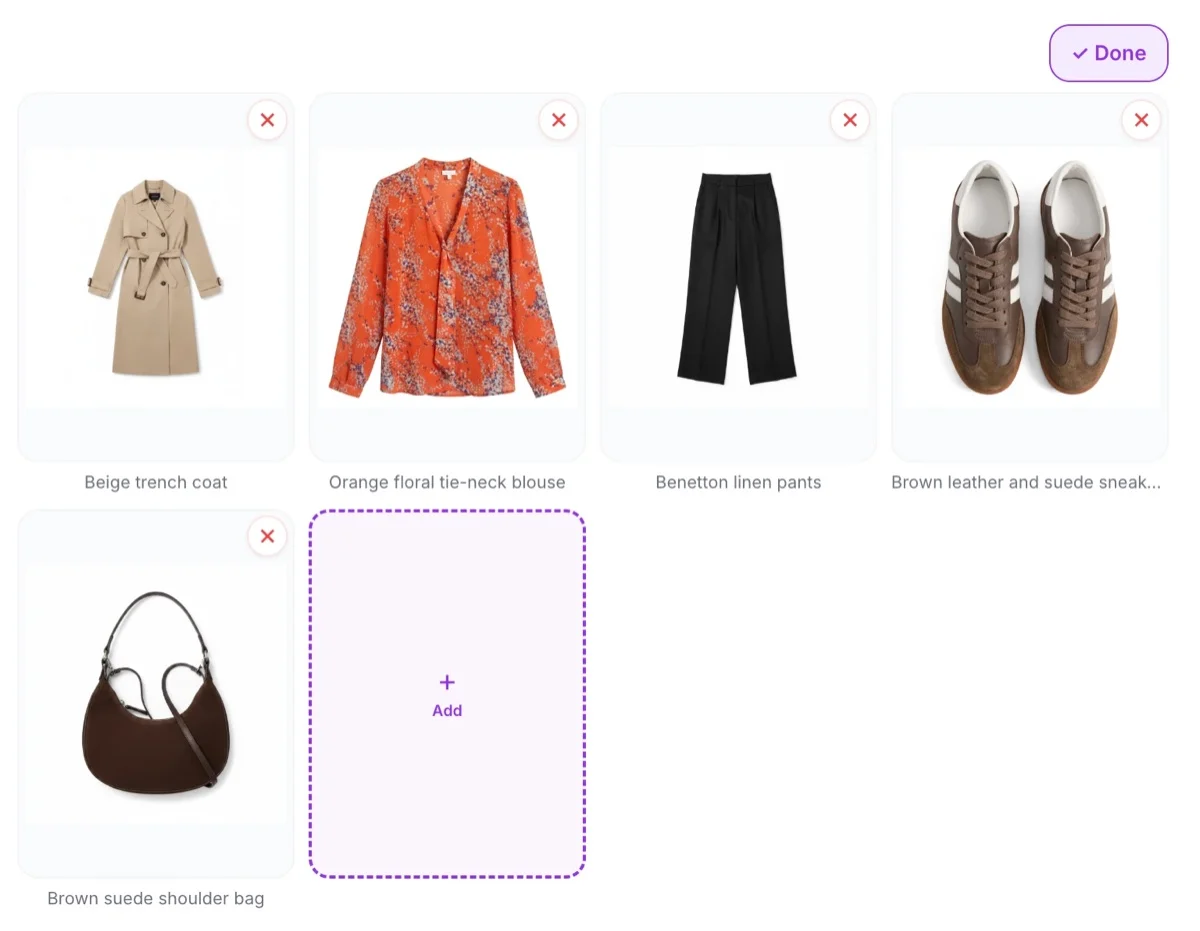
Open any day and tap Edit. Tap the ✕ on a piece to remove it. Tap + Add to pick another piece from your wardrobe. When the look feels right, tap Done.
Step 5Print it and grab and go
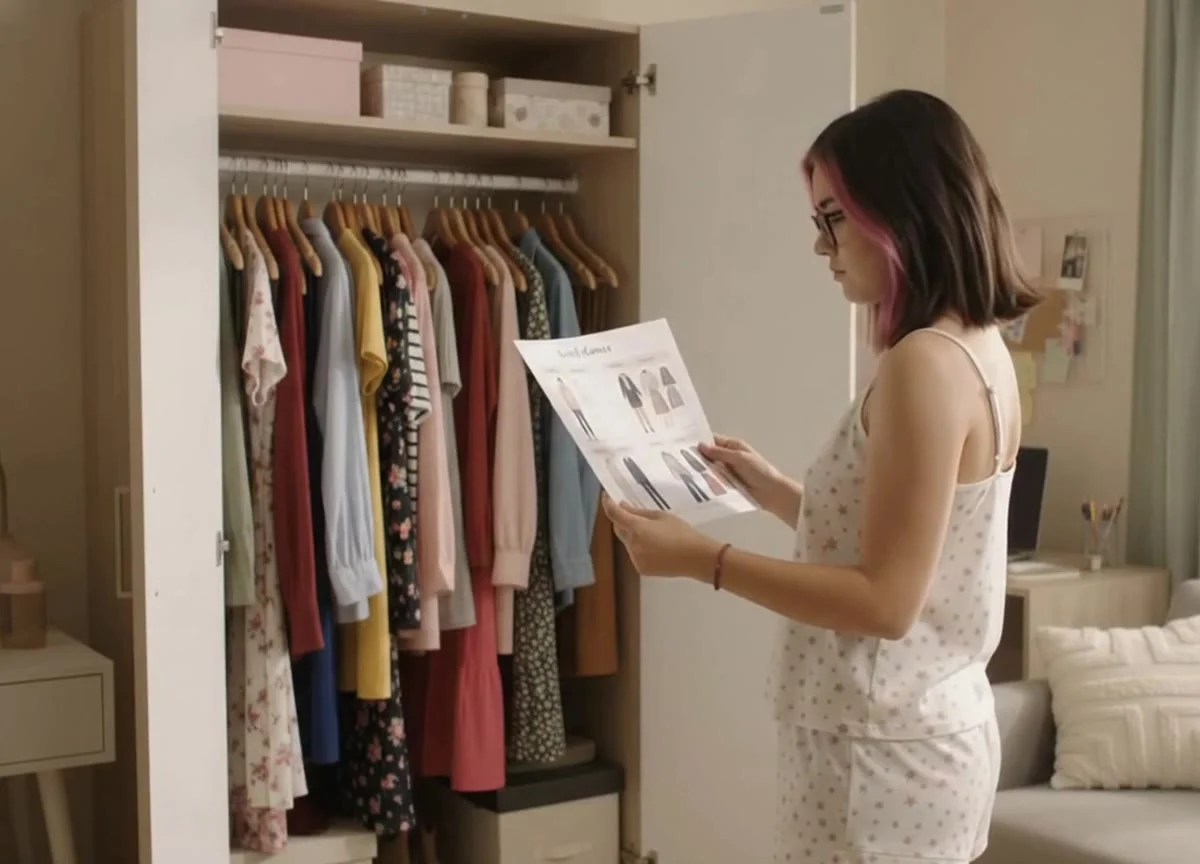
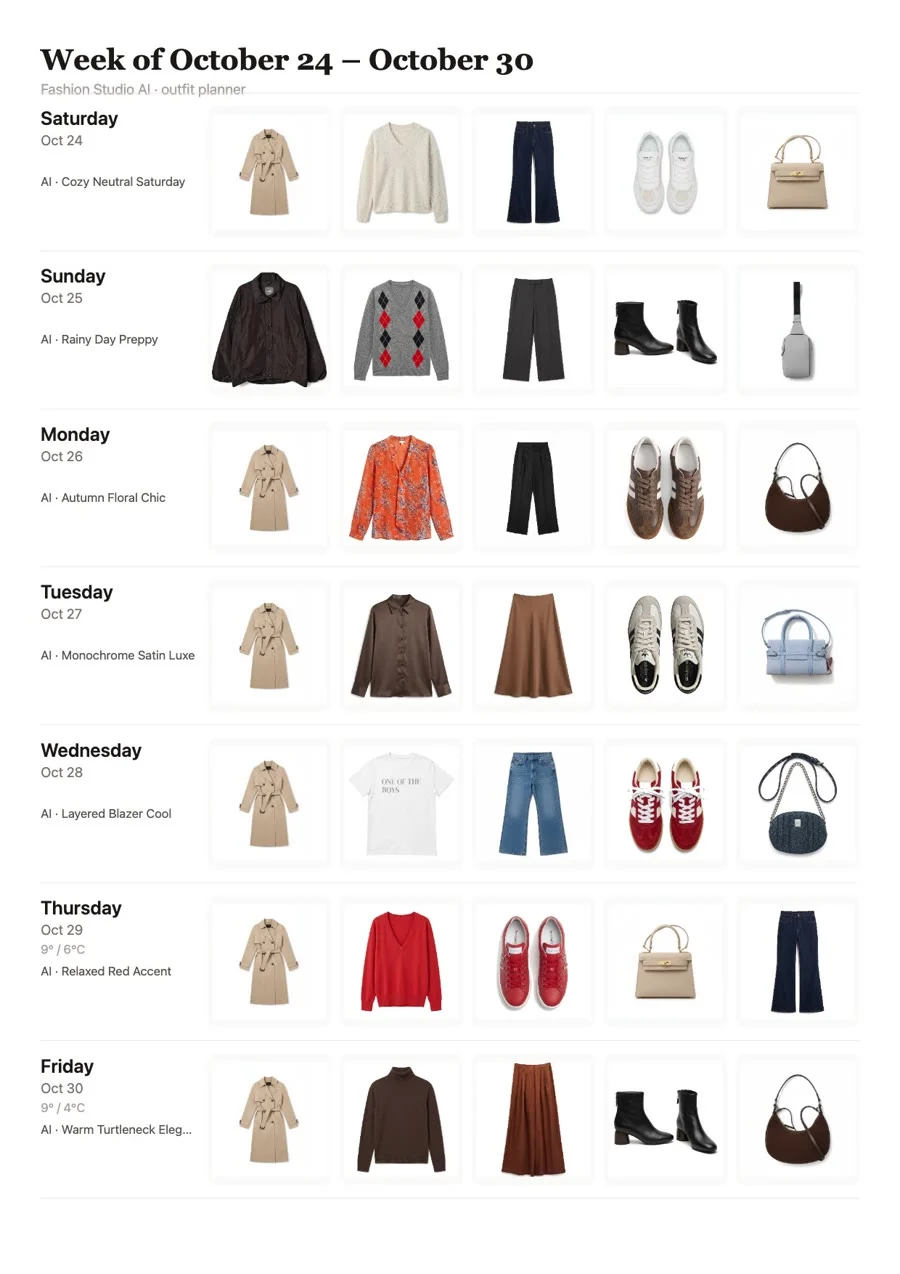
Tap Print or Download. You get the whole week on one page, with every piece as a picture. Pin it inside your closet door.
What mornings look like now
No more trying on three tops. You look at the list, take Monday's outfit off the hanger and leave on time.

3 tips to get the most out of it
- Digitize your wardrobe first. Week Planner styles only what is in your Fashion Studio AI wardrobe. Adding your clothes takes about 40 minutes, once.
- Plan on Sunday evening. Start the week from Monday and you are set for the whole working week.
- Check the next day the night before. If the weather changed, swap one piece in a second.
Plan once. Get dressed in seconds.
Try Week Planner in Fashion Studio AI.
Try Fashion Studio AI