How to Digitise Your Wardrobe, One Useful Set at a Time
Add useful pieces first, check the AI labels and keep owned clothes separate from your Wishlist.
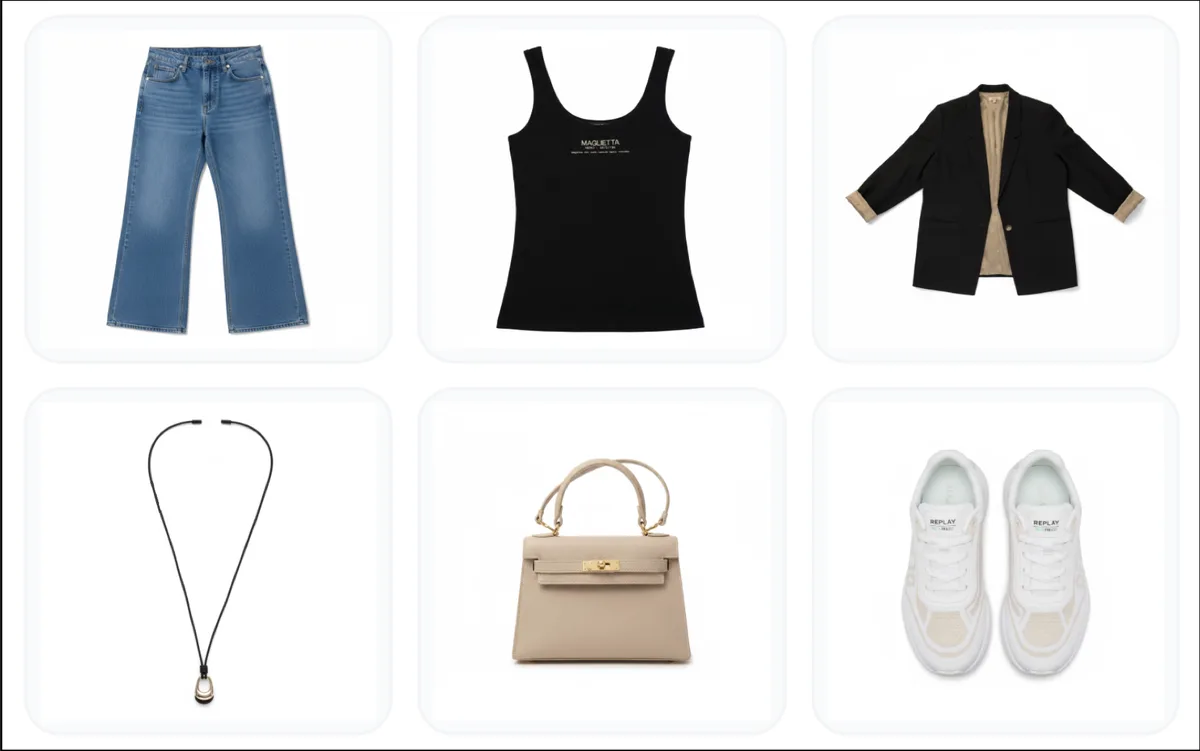
A digital wardrobe starts with photos of your clothes. Build it in manageable batches rather than photographing everything at once. Start with pieces you wear often, then expand when you need more variety.
Photograph a useful first set
Include tops, bottoms or dresses, shoes, layers, a bag and accessories. A collection of tops alone cannot produce complete outfits. Short Minimal AI capsules need two tops, two bottoms, a layer, shoes, a bag and an accessory.
Use even light, a plain background and a clear view of each garment. Avoid folds hiding the neckline, sleeves or fastening. When a photo contains several garments, review the detected pieces and choose what to save instead of treating the whole photo as one item.
Save footwear as a pair
A shoe card should contain a matching left and right shoe. When the source photo shows just one, processing completes the opposite shoe while preserving the visible design. This is a generated view, not a second product photograph: check the pair, especially logos, straps and asymmetrical details.
Check the descriptions
Review the name, category, color, warmth and any personal styling rules. Correcting a jacket tagged as a top or a heavy sweater tagged as lightweight helps later recommendations. Photos cannot establish precise fabric composition or measurements on their own.
Organize and keep purchases separate
Use folders for groups you want to find again. Save items you are considering to Wishlist; move them to owned clothes once purchased. Wishlist pieces included in a capsule are planned purchases, not clothes ready to pack.
There is no deadline or promised upload time. Start with one complete outfit, then add the alternatives you actually wear. Check the current allowance and per-item cost shown before processing.
Ready to try it yourself?
Explore try-on examples and create outfits with Fashion Studio AI.
Add to ChromeFrequently asked questions
Do I have to upload everything at once?
No. Start with complete wearable combinations and add more over time.
What if I only have a photo of one shoe?
Processing aims to produce a matching left/right pair. Check the generated partner before relying on details that were not visible in the source.
Last checked September 27, 2026 · Fashion Studio AI